


The QQ Player main interface as shown below:
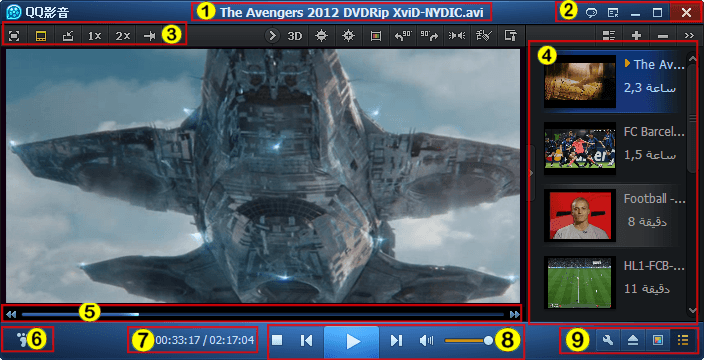
1. Title Zones: displays the file name of the file being played.
2. System Button area includes: close, maximize / restore, minimize and the main menu button.
3. Floating Control Bar includes: mode switching and video size switching button.
4. Playlist: manage playlists.
5. Play the Positioning Slider: drag this slider and position it anywhere on the movie.
6. Play Traces Status: display and control whether to keep playing the scene.
7. Time Status Display Area: displays the current playing time and total length of the movie.
8. Master Control Button Area includes: play / pause, stop, previous movie, the next movie, volume control, etc. This is the most commonly used function button.
10. Auxiliary function areas include: open the file, change the appearance, playlists and other buttons.
 and open the appropriate media file.
 Button.
 Easily switch between the various modes, you can also switch to the menu or hotkeys.
 Button to show or hide the playlist, drag the playlist to the left of the border to change the width of the playlist, click the play button in the upper part of the list
 You can change the display mode of the playlist, delete files and increase the playlist files for sorting.
 Pop-up menu, click [trace] and immediately clear playback and you can delete your play history. If you want the program to automatically delete every time you close your QQ Player recording, you can click the [Clear] button to process when you exit.
 Button will pop up the main menu in the main window and if you right click, the playlist context menu will pop up.
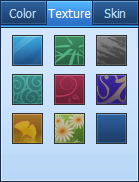
 the button will generate color panels and shading panels, you can then choose your favorite color and shading.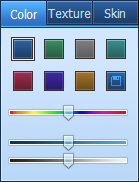
 You can change the file association in the parameter setting panel.